Inspect
Inspect is where you review inspection results in detail: pick a network, see its health and defects, and drill down into any structure.
Choose a network
When you open Inspect, the map shows each of your networks as a colored line. Click a line, or pick a network from the menu at the top right.
The Inspector panel opens on the right with that network's results.
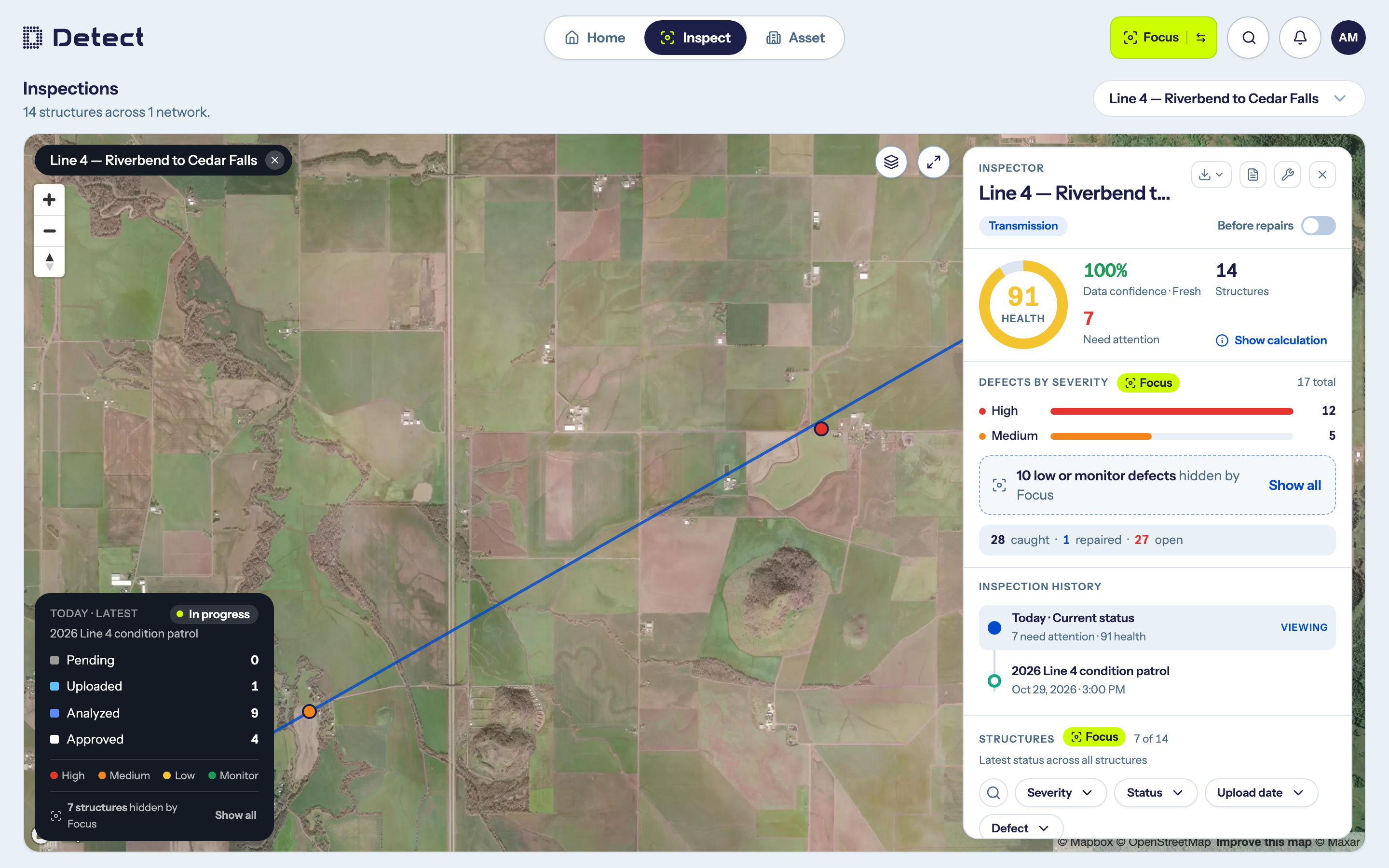
To go back to all networks, click the × on the network name at the top of the map.
The Inspector panel
From top to bottom, the panel shows:
- Health: the network's health score, its data confidence, how many structures it has, and how many need attention.
- Defects by severity: how many defects were found at each level, and how many have been caught, repaired and are still open.
- Inspection history: a timeline of inspections. See below.
- Structures: a table of every structure, with its status and defects.
Where the inspection stands
The card in the lower-left corner of the map shows the inspection's progress:
- Its status: Pending until images arrive, In progress while they are uploaded and analyzed, and Complete once every structure is approved. On Today · Current status, the card shows the network's latest inspection.
- How many structures are at each stage: Pending, Uploaded, Analyzed and Approved. Click a stage to show only those structures on the map and in the table; it works like the Status filter below. Click it again, or the × beside its count, to remove it. Like every filter in Inspect, it stays on when you switch to another inspection of the same network.
- The severity colors of the dots on the map.
Today, or one inspection
The first entry in the Inspection history is always Today · Current status: the latest result for every structure across all inspections. This is the default view.
Click an earlier inspection in the timeline to see exactly what that inspection found. Some actions are only possible with a specific inspection selected, such as uploading images and logging repairs.
Before repairs
If defects on this network have been repaired, a Before repairs switch appears. Turn it on to see the counts as originally found, before any repairs.
Find structures
Use the controls above the Structures table to narrow it down. The map updates to match.
- Search assets by name or number.
- Severity, Status and Defect filters narrow by what was found. The Defect filter is grouped by component, and you can expand a component to pick individual defect types.
- Upload date narrows by when images were uploaded: today, yesterday, the last 7 or 30 days, this or last month, or a custom range.
Click a structure in the table or on the map to open it. See Review a structure.
In Focus
In Focus, the map, the Structures list and Defects by severity keep only structures and defects that are open High or Medium. Each says what it is hiding: the map card counts the structures off the map, Defects by severity counts the Low and Monitor defects, and the list ends with the structures left out.
Any of their Show all links reveals all three together, for this network only. Opening another network narrows it again.
When you open a structure, its Defects tab lists only its open High and Medium defects, and says how many Low, Monitor or repaired ones it is hiding. The photo strip keeps only the photos showing one of those defects, and the boxes and thumbnail dots hide the rest too. Show all on either reveals everything for that structure.
Health, data confidence and Need attention at the top of the panel always count every structure. So does the stage count on the map card.
Download and export
The buttons at the top of the Inspector panel let you:
- Download the imagery or flight plans for this network.
- Export report: the published executive report, defect data, or structure status.