Asset records
The Asset tab is a register of every asset you can reach, with a full record for each one.
Browse assets
Choose Distribution or Transmission at the top.
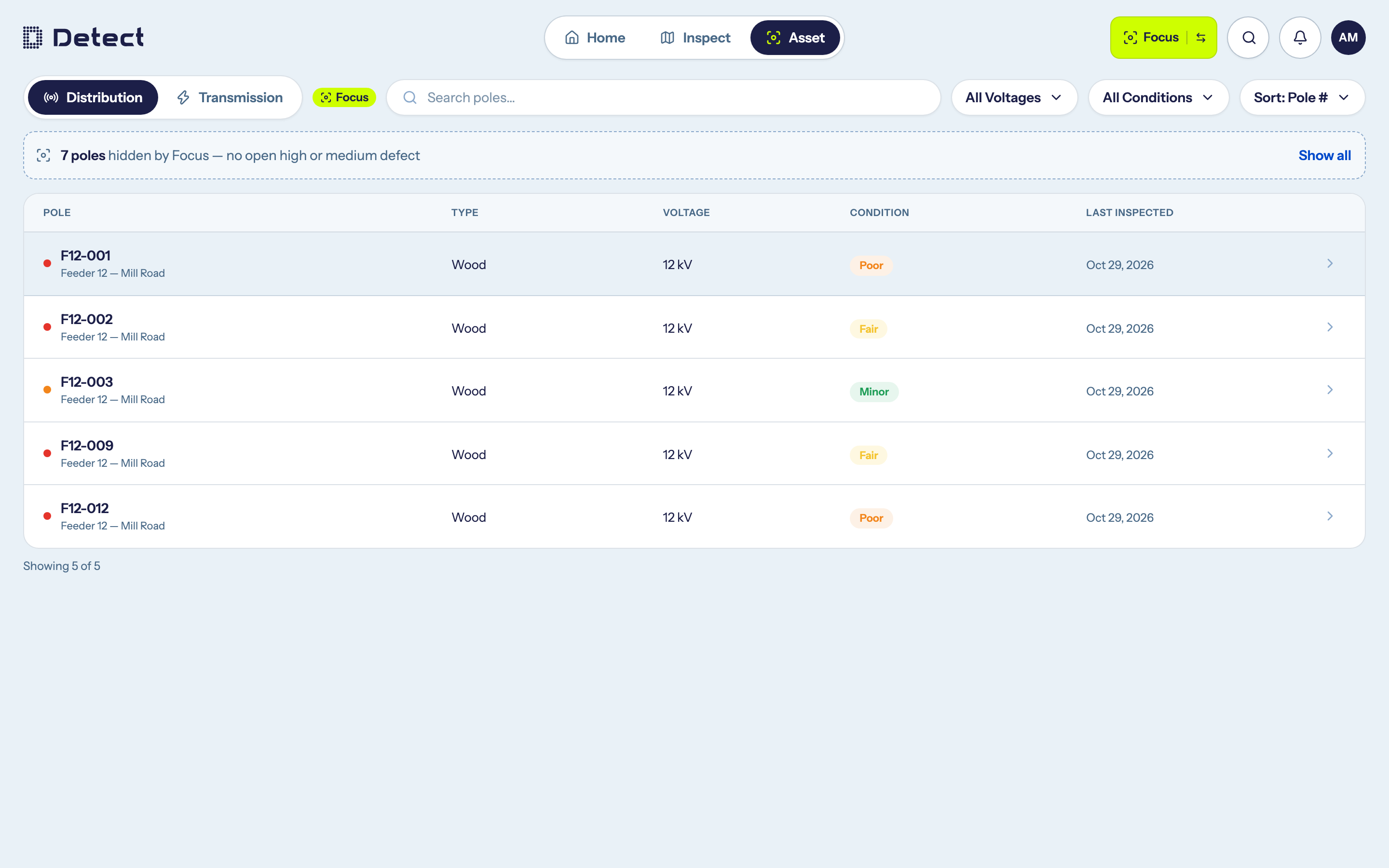
- Distribution lists poles, with their type, voltage, condition and when they were last inspected.
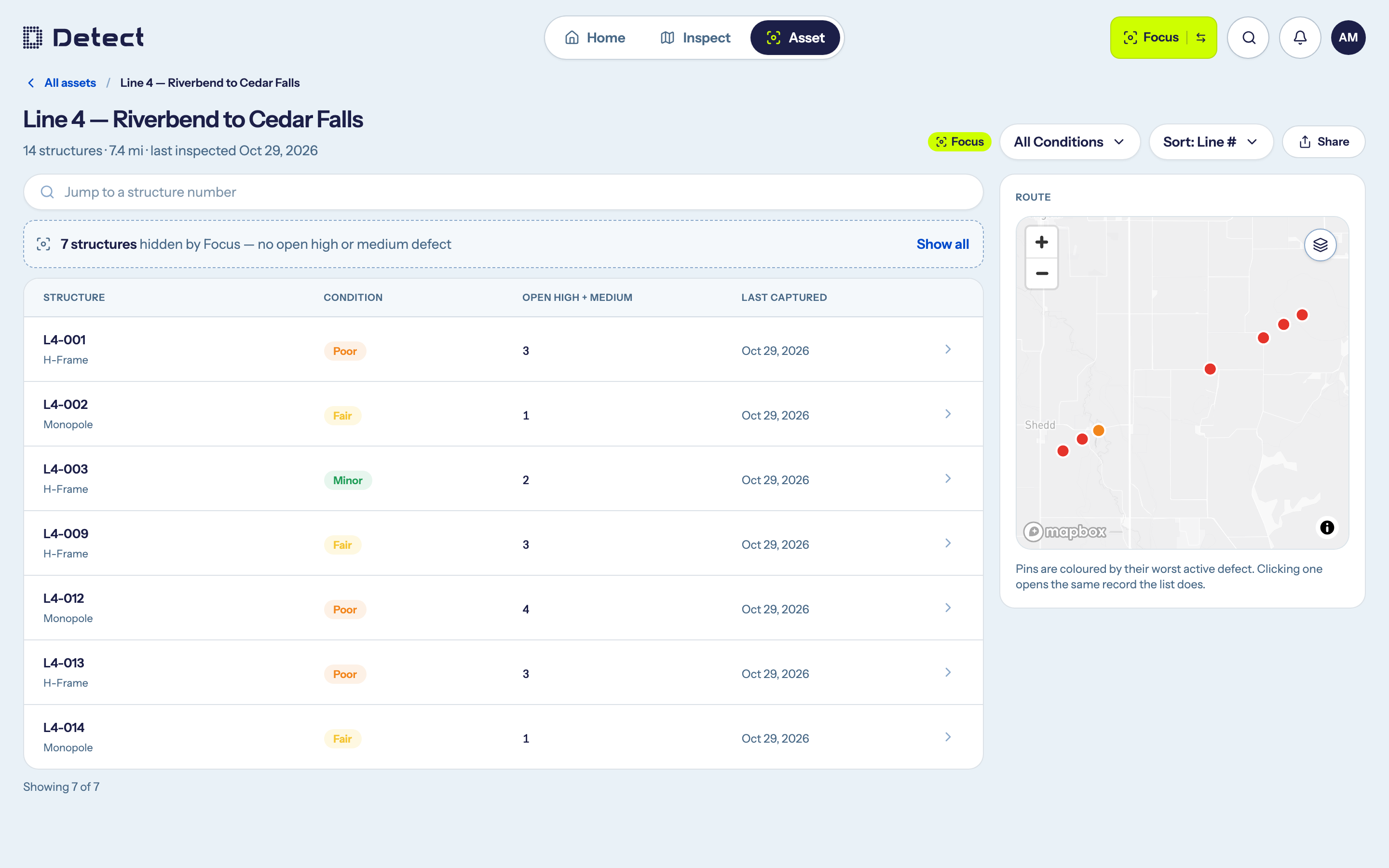
- Transmission lists lines first. Open a line to see its structures and a map of its route, or use Jump to a structure number.
Use search, the All Voltages and All Conditions filters, and the sort menu to find what you need. Assets you have opened recently appear under Recently viewed.
Networks that mix transmission and distribution structures don't appear in either list. Find their structures through Inspect or search.
The asset record
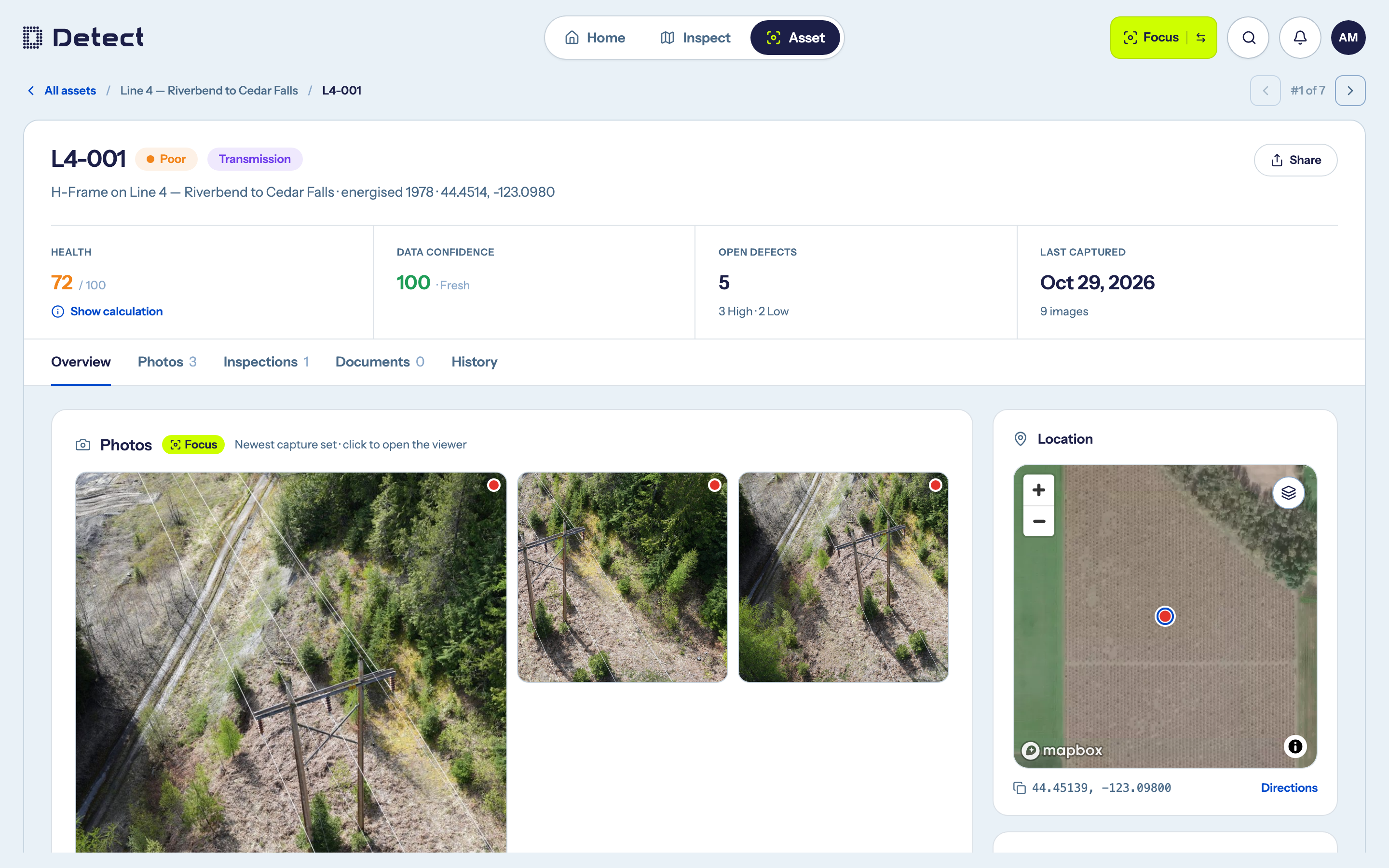
Click an asset to open its record. At the top you'll see its condition, health, data confidence, open defects and when it was last captured.
The tabs are:
| Tab | What it holds |
|---|---|
| Overview | The latest photos, documents, recent activity, attributes, open defects and location. |
| Photos | Every capture of the asset. |
| Inspections | The inspections that covered this asset. |
| Documents | Reports and files linked to the asset. |
| History | Everything that has happened to the asset over time. |
Attributes include details such as pole ID, circuit, voltage, height, class, year installed and manufacturer for poles, or line, voltage class, material and structure type for towers.
Under Location, copy the coordinates or click Open in Inspect to see the asset on the inspection map.
Use Previous asset and Next asset to move through the list, and Share to send someone a link.
In Focus
In Focus, the Asset tab keeps only the assets with an open High or Medium defect, and carries a Focus tag:
- Distribution lists only those poles.
- Transmission lists only the lines with at least one such structure.
- A line lists only those structures, and its defects column becomes Open high + medium.
A line above the table says how many Focus is hiding, for example "7 poles hidden by Focus".
In an asset record, the photos keep only captures with an open High or Medium defect on them, and the photo viewer steps through just those. The open defects list drops Low and Monitor defects. Each has its own Show all. The tiles at the top always count every defect.
The photo viewer
Click a photo to open it full screen.
- ← and → step through the photos.
- D, or the defects button, shows or hides the defect boxes drawn on the photo.