Team management
Org admins manage their team from the portal. Pilots don't have access to this page.
On the portal home, click Manage team.
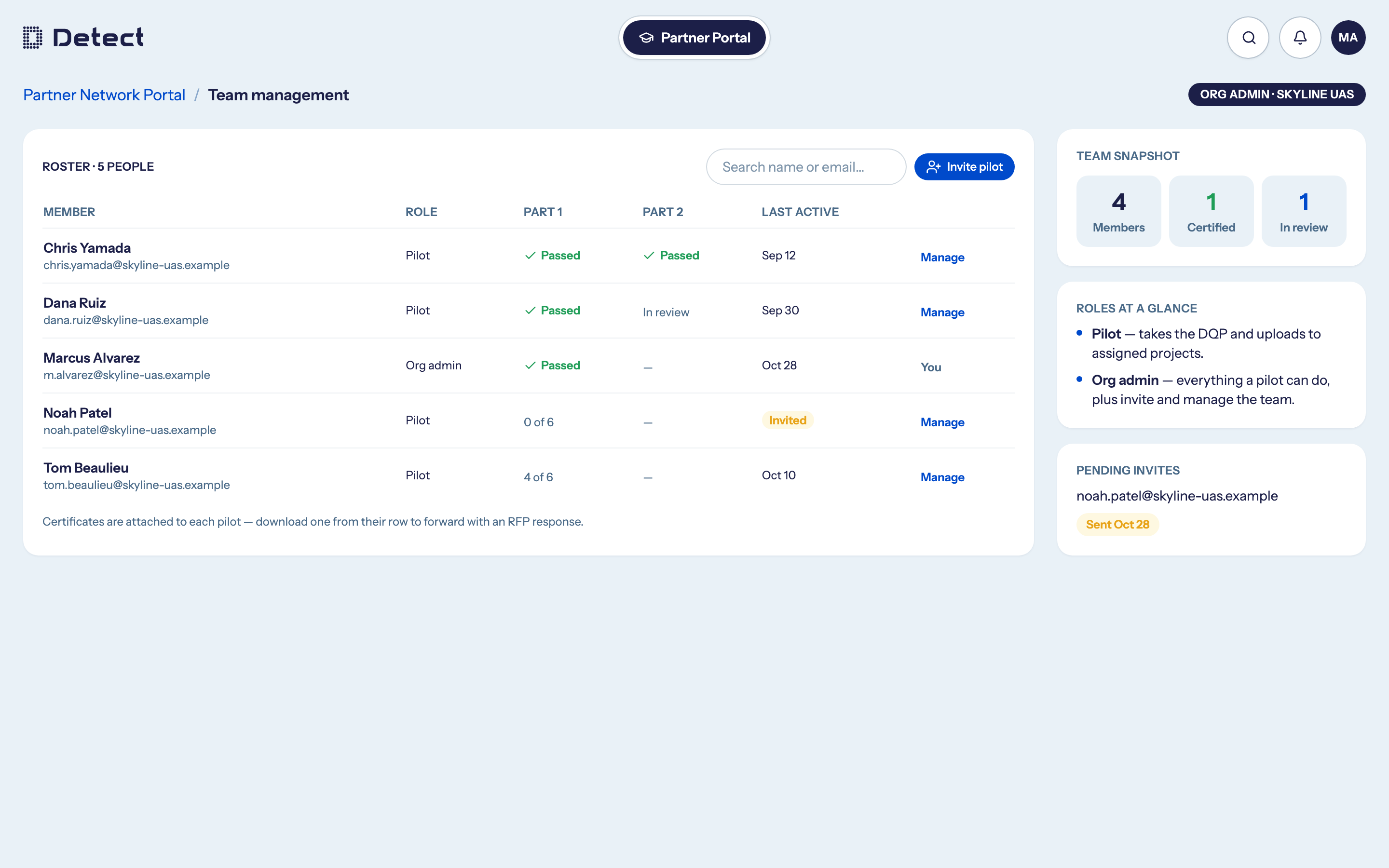
The roster
The roster lists everyone on your team:
| Column | What it shows |
|---|---|
| Member | Name and email. |
| Role | Pilot or Org admin. |
| Part 1 | Passed, or how many modules they have finished, such as 3 of 7. |
| Part 2 | In review, Resubmit, Passed, or a dash if not started. |
| Last active | When they last used DetectOS, or Invited if they haven't joined yet. |
The side panels show a Team snapshot (members, certified, in review) and your Pending invites.
Invite a team member
- Click Invite pilot.
- Enter their email address.
- Choose a role: Pilot or Org admin.
- Click Send invite.
They receive an email to set up their account. The link works for 24 hours. When they sign in, they land on the Data Quality Program at Part 1.
There is no resend button in the portal. If an invite link expires, the person can use Forgot password? on the sign-in page with the invited email, or you can contact Detect.
Manage a team member
Click Manage in a member's row. From there you can:
- Download Part 1 certificate or Download Part 2 certificate. Use these to include a pilot's certificates with an RFP response.
- Make an org admin or Make a pilot.
- Remove from the team.
Removing someone deletes their progress and certificates from DetectOS and frees their seat. This cannot be undone.
If a pilot is stuck
If a pilot has used every quiz attempt on a module, the module goes on hold and only Detect can reopen it. The roster doesn't show this, so the pilot should contact their Detect representative. See If a module goes on hold.