Finding your way around
Where you land
After you sign in, DetectOS opens on:
- Home, if your organization uses the core platform;
- the Partner Portal, if your organization only uses the Partner Portal;
- Your workspace isn't enabled yet, if Detect hasn't turned on anything for your organization yet. Click Contact Detect to get set up.
The top bar
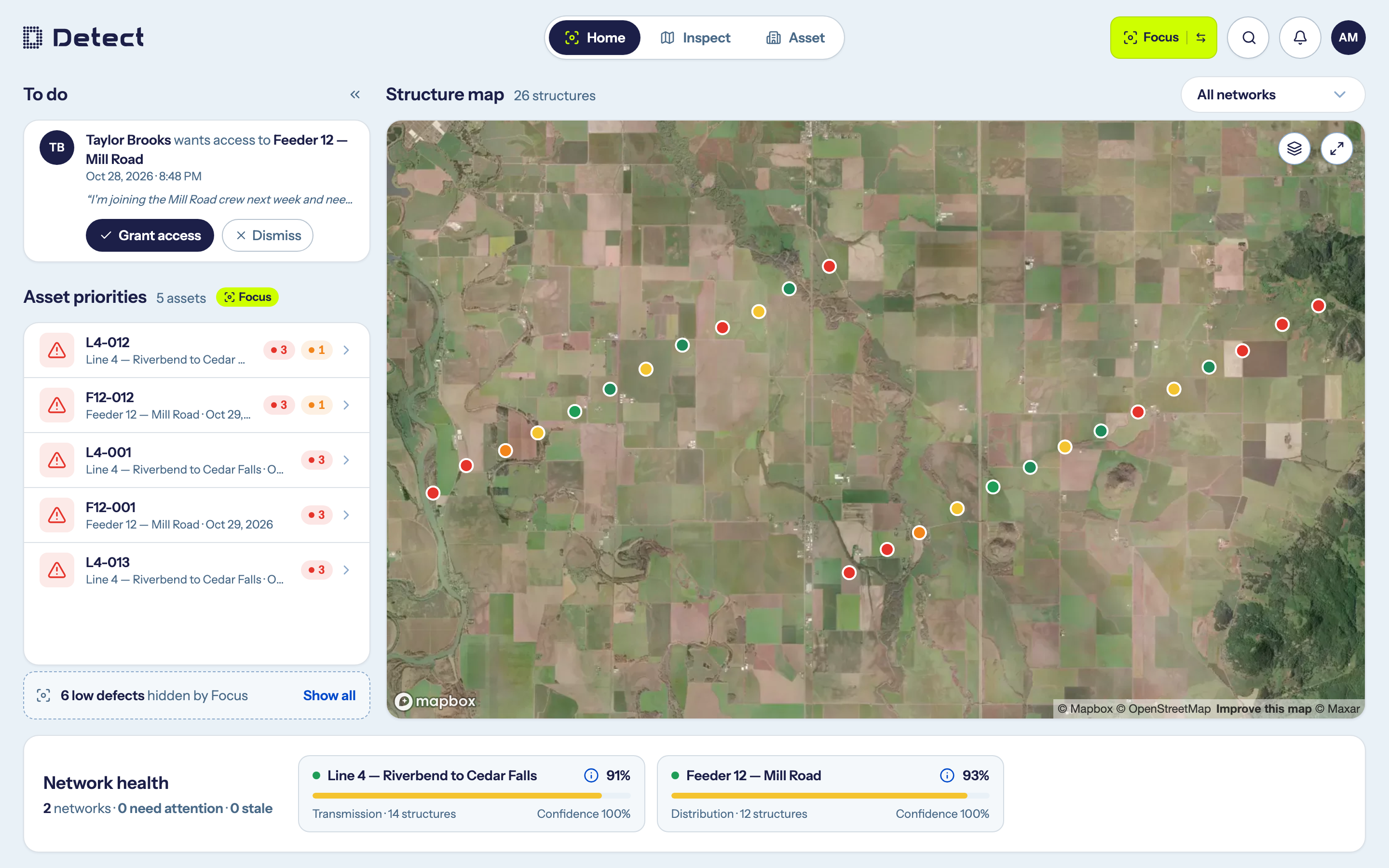
The tabs across the top take you to each area:
| Tab | What it is for |
|---|---|
| Home | Your overview: what needs attention, a map of every structure, and the health of each network. See The Home page. |
| Inspect | Inspection results, network by network, down to every photo and defect. See Inspect. |
| Asset | A record for every pole, tower and line. See Asset records. |
| Partner Portal | The Data Quality Program, for organizations in Detect's partner network. |
You only see the tabs your organization uses.
DetectOS is designed for screens at least 1024 pixels wide. In a narrower window, scroll sideways to see the whole page.
Focus and Full
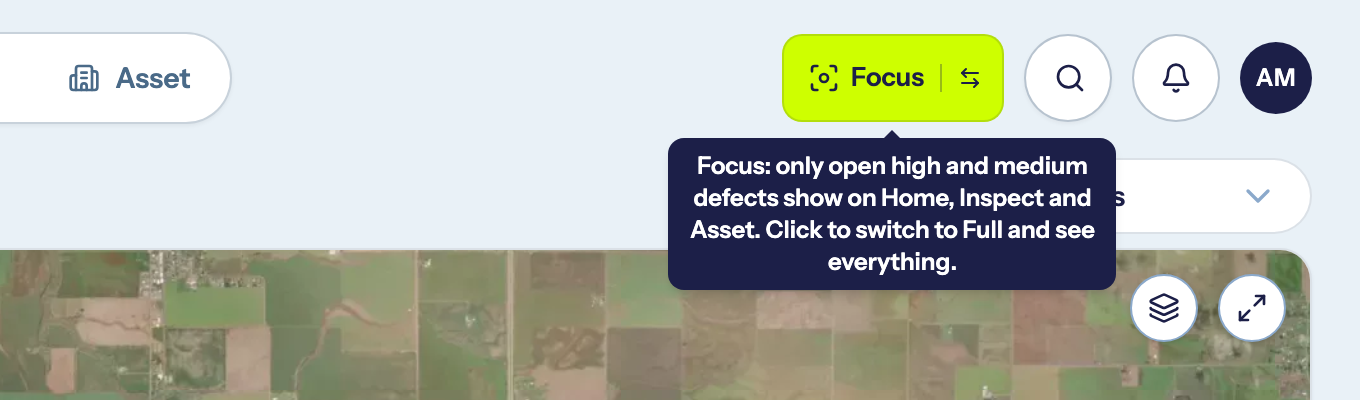
DetectOS has two views of your results. Focus shows only what needs attention now; Full shows everything. A switch beside search on Home, Inspect and Asset names the view you are in. Click it to change view.
What Focus shows
Focus keeps anything with at least one open High or Medium defect, and hides everything else:
- Low and Monitor defects;
- structures and photos with no defects;
- structures that haven't been analyzed yet;
- High and Medium defects that have been repaired.
Where it applies
| Page | What Focus narrows |
|---|---|
| Home | Asset priorities: Low counts drop off each row. |
| Inspect | The Structures list, Defects by severity, the structures on the map, and a structure's defects and photos when you open it. |
| Asset | The pole list, the list of lines, a line's structures, and an asset record's photos and open defects. |
Focus never changes a score or a headline count: health, data confidence, Network health, Need attention and an asset's open defects total always count every defect. The Home map, a structure's repair history, downloads, report exports, Admin and the Partner Portal always show everything.
Opening something Focus hides, from the Home map, a notification, search or a shared link, shows everything on that page, so you land on exactly what you opened.
Show all
Each part of a page that Focus narrows says how much it is hiding, for example "7 structures hidden by Focus — no open high or medium defect". Click Show all to see everything in that part of the page. The rest of DetectOS stays in Focus. Click Back to Focus to narrow it again. Opening another network or line, or changing view, narrows it again too.
If nothing on a page needs attention, Focus shows everything and says so: "Nothing here needs attention, so Focus is showing everything."
Which view opens
Your first visit opens in Focus, and the Home tour points out the switch. After that, DetectOS opens in the view you used last, on that browser: in new tabs, after a reload, and when you next sign in. A tab that is already open keeps its view until you reload it. Another browser or computer starts in Focus.
How to tell you are in Focus
- The switch reads Focus on a bright yellow-green background. In Full it reads Full on dark blue.
- The icon on the current tab (Home, Inspect or Asset) changes to the Focus brackets.
- Each section Focus is narrowing carries a Focus tag. The tag goes when you click Show all.
- A structure you open in Inspect, and the full-screen photo viewer, cover the switch, so they carry the Focus tag themselves while Focus is narrowing them.
- The browser tab's title starts with "Focus ·", and its icon shows a dot.
Search
Click the magnifying glass to search across Assets, Networks and Inspections. Press Enter to open the top match, or Esc to close.
What happens when you pick a result depends on the page you're on. On Home, an asset moves the map to it and a network filters the map. On Inspect, it opens the network or structure.
Notifications
The bell shows a badge when you have unread notifications, for example when an analysis finishes, someone mentions you in a comment, your access changes, or a download is ready. Click Mark all read to clear them.
The account menu
Click your avatar in the top-right corner for:
- Profile: your name, job title, photo, and the networks you can reach.
- Downloads: image exports you've requested. See Export reports and download images.
- Admin: for Admins only. See Administration.
- Tour this page: replay the guided tour.
- Talk to support.
- Dark mode.
- Sign out.
Guided tours
The first time you open Home, Inspect, Asset or the Members page, a short tour points out the main parts of the page. Use → or Enter for the next step, ← to go back, and Esc to end the tour. Replay it any time from Tour this page in the account menu.
Your profile
Open Profile from the account menu to update your first name, last name, job title and photo (PNG, JPEG or WebP, up to 5 MB). Your email and organization can't be changed here. The Access panel lists the networks you can reach. If you need more, ask your organization's Admin.