Administration overview
If you are an Admin in your organization, you manage who can use DetectOS and what they can reach. This section covers everything in the Admin area.
Open the Admin area
- Click your avatar in the top-right corner to open the account menu.
- Click Admin.
The Admin link only appears for Admins. Anyone else who opens an admin page is sent back to their home page.
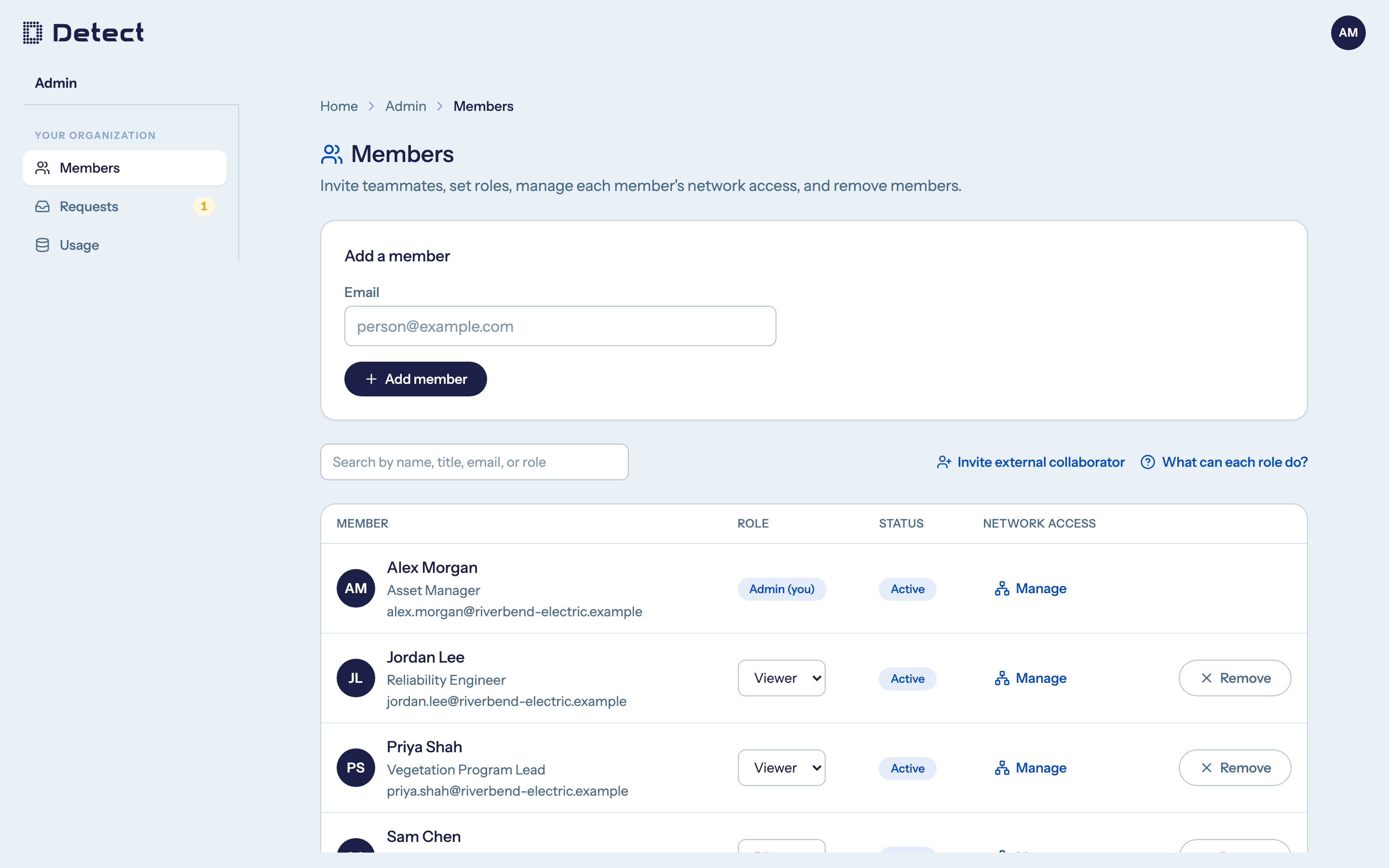
What you can manage
| Page | What it is for |
|---|---|
| Members | Invite teammates, set their role, give them access to networks, and remove them. |
| Requests | Approve or decline people asking for access to your networks. |
| Usage | See how much data your organization stores and how many people are active. Utility organizations only. |
You can also share an asset straight from the page you are looking at.
How access works
Two separate settings decide what a person can do in DetectOS:
- Role is what they can do: view, upload, edit or manage. A role applies across every network the person can reach. See Roles and permissions.
- Network access is which networks they can reach. You set it per member. See Network access.
A person needs both. A new member starts as a Viewer with no network access, so they see nothing until you grant them a network.
What Detect sets up for you
Some things are configured by Detect during onboarding rather than by your admins. Contact Detect if you need any of these changed:
- Which parts of DetectOS your organization can use. Detect turns on each product area for your organization, such as the core platform (Home, Inspect and asset pages), the Partner Portal or Flight Planning. A new organization has nothing turned on, and turning on one area never turns on another.
- Networks and structures. Detect creates your networks and loads your assets as part of onboarding. Admins decide who can reach them.
- Plan limits for storage and seats, shown on the Usage page.
- Single sign-on. Microsoft and Google sign-in work without any setup on your side. See Signing in.