Network access
A member's role decides what they can do. Network access decides which networks they can do it on. You set it separately for each member.
Choose a member's networks
- Go to Admin › Members.
- In the member's row, click Manage in the Network access column.
- Choose one option:
- All networks: every network in your organization, including networks added later.
- Specific networks: tick the networks they need. Use Select all and Clear to move faster.
- Click Save access.
You will see Access updated.
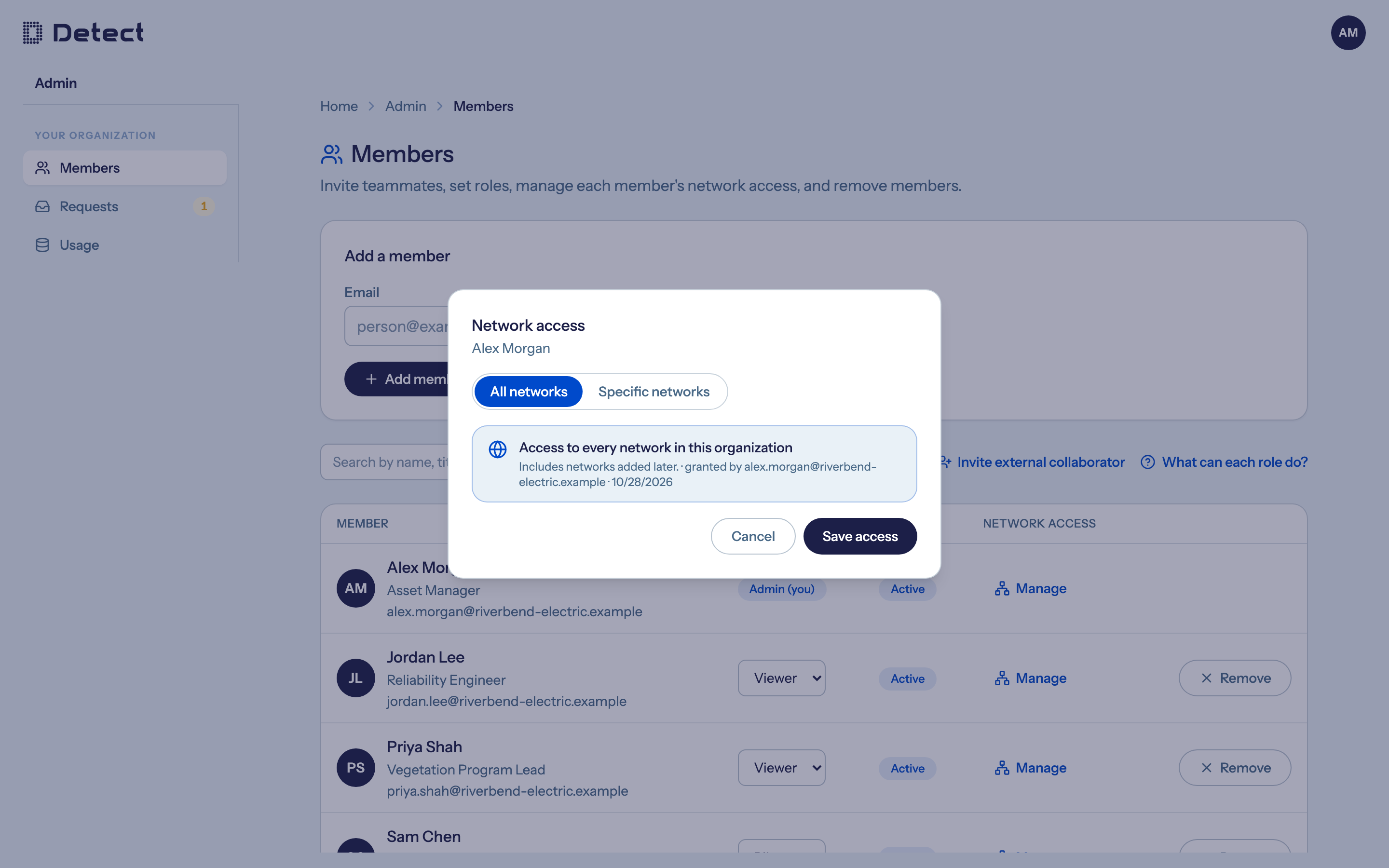
Choose All networks for people who should automatically see new networks as Detect adds them. With Specific networks, you need to add each new network yourself.
If the member can also reach networks in another organization, the dialog lists them under Access in other organizations.
Invite an external collaborator
Use this for someone from another company, such as a contractor or drone service provider, who needs to see some of your networks. They stay in their own organization, and you can revoke their access at any time.
- On the Members page, click Invite external collaborator.
- Enter their email address.
- Tick the networks they should see. You can search the list.
- Click Invite.
What happens next depends on the person:
- They already use DetectOS at another company. You are asked to confirm. Click Confirm invite, and they get access straight away.
- They are new to DetectOS. Detect needs to set up their organization first. You will see Request sent to a Detect admin to set up, and Detect will follow up.
Review or revoke external access
When anyone outside your organization has access, an External collaborators section appears below the roster. It shows each person, their organization, and the networks they can reach.
To remove access to a network, click Revoke beside it and confirm. You can invite them again later.