Manage members
The Members page lists everyone in your organization. Here you can invite teammates, set roles, manage network access, and remove people.
Go to Admin › Members.
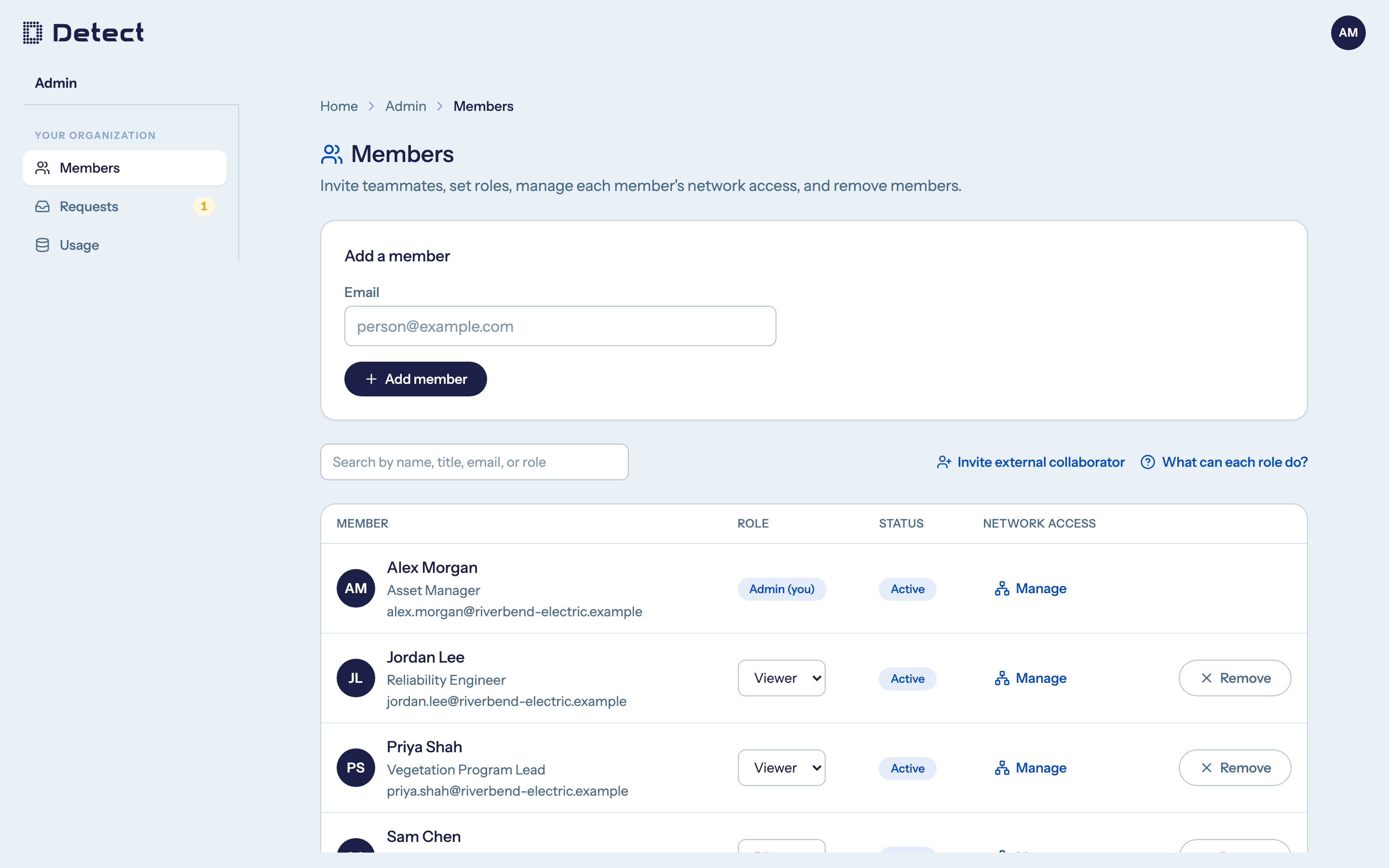
Invite a teammate
- In the Add a member card, type their work email address.
- Click Add member.
You will see Invite sent. The person receives an email from Detect with a link to set up their account. The link works for 24 hours.
They can set up their account either way:
- Set a password, using the link in the email. They enter their name, an optional job title and a password, and accept the privacy policy.
- Sign in with Google or Microsoft using the same email address you invited.
Give them access
A new member starts as a Viewer with no network access, so they will see nothing until you finish setting them up:
- Set their role in the Role column.
- Click Manage in the Network access column and choose their networks. See Network access.
You can do both before the person accepts the invite. Everything is ready the first time they sign in.
If the invite fails
| Message | What to do |
|---|---|
| This person is already a member of this organization. | They already have an account. Find them in the roster instead. |
| This person belongs to another organization. | They have a DetectOS account at another company. Use Invite external collaborator instead. |
Find a member
Use the search box above the roster. It matches name, job title, email and role. The roster shows 15 people per page.
The Status column shows where each person is:
- Pending: invited, but they have not signed in yet.
- Active: they have signed in at least once.
Resend an invite
Invite links expire after 24 hours. If someone missed theirs:
- Find them in the roster. Their status is Pending.
- Click Resend.
They get a new link, valid for another 24 hours. Older links stop working.
Remove a member or cancel an invite
- Find the person in the roster.
- Click Remove (for an active member) or Cancel (for a pending invite).
- Confirm.
Removing a member takes effect immediately and cannot be undone. To give them access again, invite them again. Inspections they created keep their name.
You cannot remove yourself or someone who outranks you.