Access requests
When someone opens a link to an asset they cannot reach, DetectOS lets them ask for access. As an Admin of the organization that owns the network, you decide.
How you are notified
When a request comes in:
- the notification bell shows an alert;
- the request appears in the To do card on your Home page;
- the Requests item in the Admin area shows a count of open requests.
Approve or decline a request
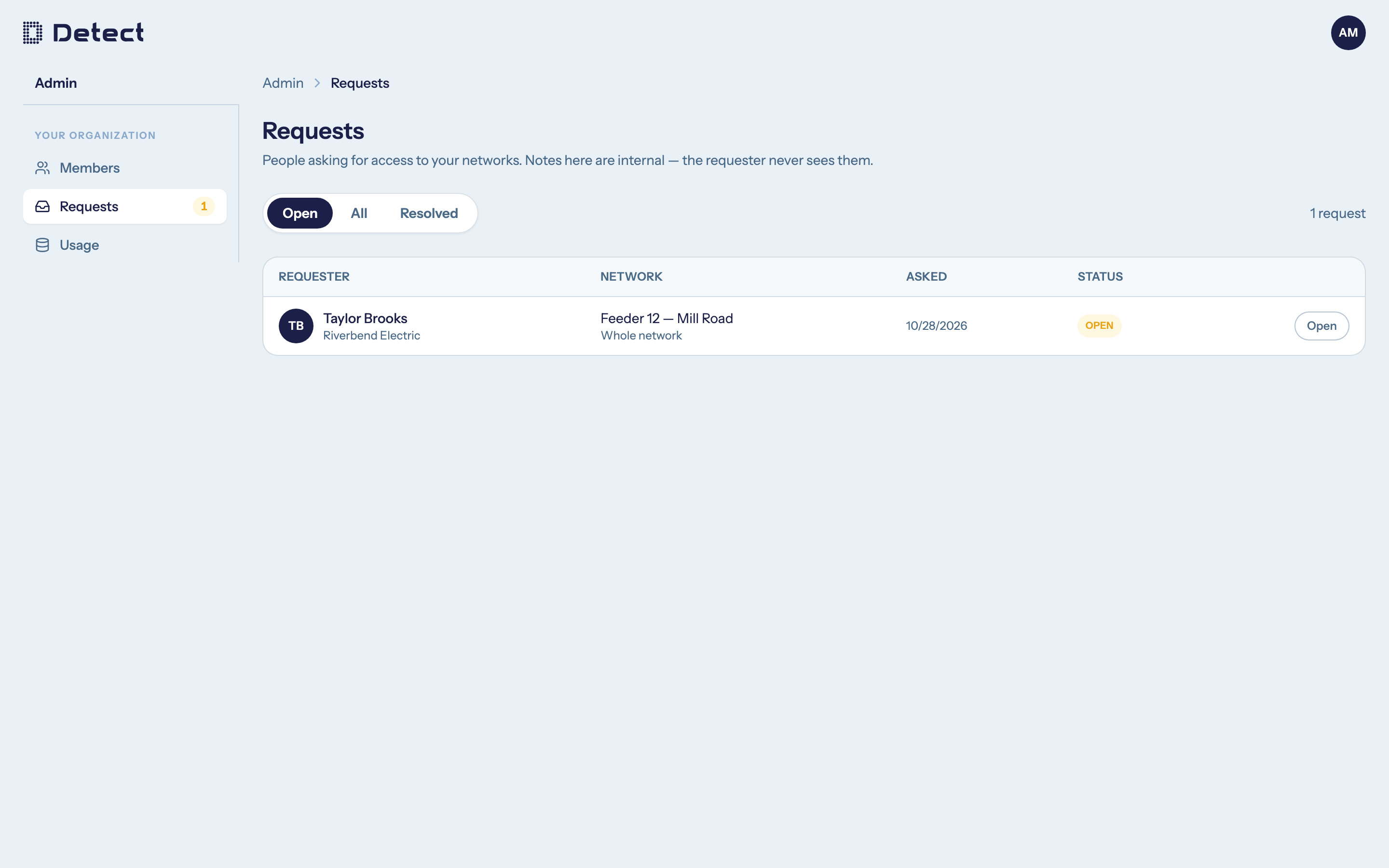
- Go to Admin › Requests.
- Find the request and click Open.
- Review who is asking, which network and asset they asked about, and their message.
- Click Grant access or Decline.
Even if the person asked about a single asset, granting a request gives them access to the whole network that asset belongs to. If they should only see one inspection, share the asset from within that inspection instead.
The person is notified when you grant access.
You can also act from your Home page: the To do card has Grant access and Dismiss buttons. Dismiss declines the request.
Discuss a request with other admins
Inside an open request, the notes panel is visible to admins of that network only. The requester never sees it. Type @ to mention another admin, and they get a notification.
Filter requests
Use Open, All or Resolved at the top of the page. Each request shows one of these statuses:
| Status | Meaning |
|---|---|
| Open | Waiting for a decision. |
| Granted | An admin gave the person access. |
| Declined | An admin declined the request. |
| Resolved | An older request that has been closed. |
A declined person can send a new request later. Repeat requests from the same person within 24 hours are merged into one.